

Use Intune with Windows Autopatch for cloud-first, phased Windows updates management, and keep WSUS or Group Policy only where network limits or compliance rules demand local control. This gives you automated rings, driver handling, and reporting without babysitting every device by hand.
Three things to do this week:
- Confirm your licensing entitlements and set diagnostic telemetry to "required" before touching Autopatch.
- Define a pilot ring of a small subset of devices, weighted toward machines running your critical business apps.
- Turn on compliance reporting so you can see failures before users start calling.
Key Takeaways
Cloud-first Windows updates management with Intune and Windows Autopatch beats manual patching for nearly every fleet, provided licensing and connectivity requirements are met first.
| Point | Details |
|---|---|
| Choose cloud-first by default | Intune + Autopatch handles rings, drivers, and reporting automatically for most fleets. |
| Keep WSUS as a fallback | Retain WSUS/GPO only for bandwidth-constrained or offline network segments. |
| Run at least three rings | Pilot (1 to 5%), fast, and broad rings catch problems before they reach everyone. |
| Watch reports weekly | Quality and feature update reports reveal failures before help desk tickets pile up. |
| Verify prerequisites first | Confirm licensing, telemetry, and wlidsvc status before enrolling in Autopatch. |
| Consider managed support | Goodsontech runs enrollment, ring design, and ongoing monitoring for teams without dedicated IT staff. |
Table of Contents
- What Are Your Options for Windows Updates Management?
- What Core Settings Control Windows Update Behavior?
- How Do You Structure a Phased Rollout Playbook?
- Which Tools Actually Handle Windows Patch Management?
- What Are the Right Deferral and Deadline Settings?
- How Do You Automate Monitoring and Remediation?
- How Do You Troubleshoot and Roll Back a Bad Update?
- What Do You Need Before Enrolling in Autopatch?
- Balancing Simplicity and Control for Small Organizations
- Let Goodsontech Handle Your Windows Update Management
- Sources
What Are Your Options for Windows Updates Management?
Three control planes exist, and picking the wrong one costs you either time or bandwidth. Cloud native means Intune with Autopatch, which handles rings, policy assignment, and reporting from Microsoft's cloud. On premises means WSUS paired with Group Policy, giving you full local control over what gets approved and when. Manual or registry based management still exists in small shops, but it does not scale past a handful of machines.
Here is how they stack up:
- Intune + Autopatch: low admin overhead, minimal bandwidth cost, but requires specific licenses and steady internet.
- WSUS + GPO: higher admin overhead, strong bandwidth control for local networks, no extra licensing cost.
- Manual/registry: zero licensing cost, but overhead scales badly and there is no centralized reporting.
Choose cloud native for most fleets. Fall back to WSUS when you manage a factory floor, a ship, or a facility with metered or unreliable internet.
What Core Settings Control Windows Update Behavior?
Three policy layers do the real work: update rings, update type policies, and hotpatch settings. Get these right and most of your Windows update settings headaches disappear before they start.
- Update rings. Each ring controls deferral days, deadline days, active hours, and whether feature updates install alongside quality updates. Intune lets you assign devices to rings by group, so your finance department can sit two weeks behind your IT test machines.
- Update type policies. Feature updates change the OS version and ship a few times a year. Quality updates are the frequent security and stability patches. Driver updates get their own approval flag, separate from quality updates, because a bad driver push causes different damage than a bad security patch.
- Hotpatch. Eligible devices can install certain security updates without a restart, cutting disruption for always-on kiosks or shift-based workstations. Hotpatch has narrower device and licensing eligibility than standard quality updates, so check eligibility before you count on it fleet-wide.
Pro Tip: Set driver update policies to "manual approval" for your first quarter running Autopatch. Auto-approved drivers cause more support tickets than bad quality updates do.
How Do You Structure a Phased Rollout Playbook?
Run three rings minimum: pilot, fast, and broad. This is the single biggest lever for reducing update-related outages across a fleet of any size.
- Pilot ring. Keep it small, 1 to 5% of devices, and stock it with machines running your line-of-business apps. Zero deferral, so you see problems fastest.
- Fast ring. A few hundred devices or 10 to 20% of the fleet, deferred by a few days behind pilot.
- Broad ring. Everyone else, deferred by one to two weeks behind fast.
Watch for spikes in application crash reports, driver failure events, or a jump in help desk tickets citing the same error code. Any of those is your signal to pause the ring, not push forward. You can pause quality updates for up to 35 days and defer feature updates for as long as 365 days, which buys real room to investigate before committing the broad ring.
Pro Tip: Do not progress a ring on a Friday afternoon. If something breaks, you want your team awake and available to catch it, not fielding weekend calls.
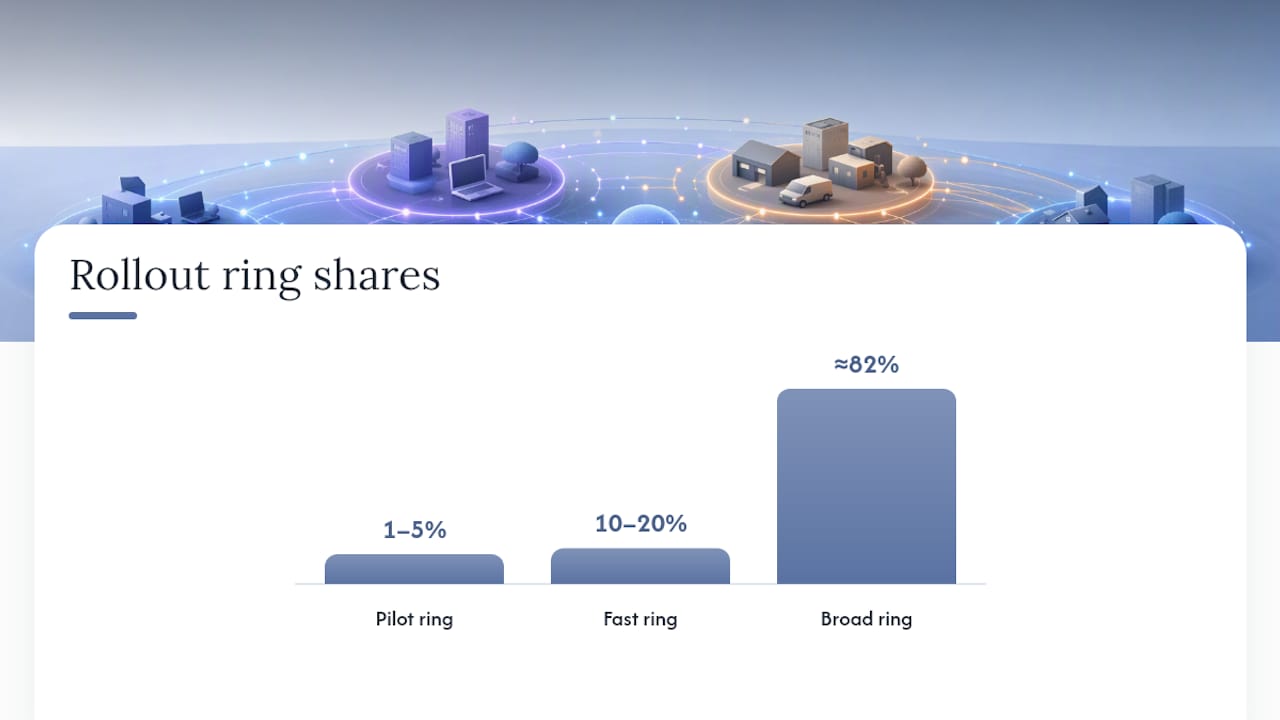
Use your Autopatch reports to track ring health before advancing, and roll back immediately if failure rates climb rather than waiting for a full reporting cycle.
Which Tools Actually Handle Windows Patch Management?
Each platform trades convenience for control differently, and knowing where that line sits saves you from picking the wrong tool for your environment.
- Intune + Autopatch automates ring assignment, driver management, and hotpatch, with dashboards showing device-level status. The tradeoff is licensing cost and a telemetry requirement that some regulated environments cannot meet outright.
- WSUS + GPO gives you explicit approval control and keeps all update traffic on your local network, which matters for bandwidth-constrained sites. You pay for that control with more manual approval work.
- MDM policy CSPs and ADMX overlap heavily. If a device is cloud-managed, configure through the policy CSP. If it is domain-joined and offline-heavy, GPO's ADMX templates still do the job.
Most hybrid shops end up running Intune for the majority of devices and WSUS for a defined subset. That split is not a failure of planning. It is often the correct architecture.
What Are the Right Deferral and Deadline Settings?
Configuration ranges matter more than defaults here, and the wrong default costs you either security exposure or user goodwill.
- Feature update deferral: 60 to 180 days is a common working range for most business fleets, giving Microsoft time to fix early bugs before you deploy.
- Quality update deferral: 0 to 7 days for pilot devices, 7 to 14 days for broad rings.
- Deadlines: a 2 to 5 day deadline after a quality update's release balances patch urgency against forcing an unplanned restart mid-workday.
- Active hours: set these to match real usage, not a guess, or Windows will restart machines while someone is mid-presentation.
- Detection frequency: the default scan interval is roughly 22 hours with up to 4 hours of random jitter built in, so do not panic if two identical devices check in at slightly different times.
Pro Tip: That jitter is intentional. Microsoft staggers scan times so thousands of devices do not hammer update servers at the same second.
How Do You Automate Monitoring and Remediation?
Autopatch and Intune reporting exist so you stop finding problems from angry phone calls. Watch the quality update report and feature update report weekly at minimum, and check device alerts daily during any active rollout.
- Flag devices stuck on an old build for automated remediation, which can trigger an expedited update push.
- Quarantine devices showing repeated installation failures rather than letting them retry endlessly and burn bandwidth.
- Route persistent failures into your ticketing system automatically, tagged with the specific error code, so your help desk is not starting from zero.
Small organizations running Autopatch typically see high percentages of devices staying current once rings and remediation rules are properly tuned, which is the whole point of moving off manual patch pushes.
How Do You Troubleshoot and Roll Back a Bad Update?
When an update goes wrong, speed matters more than perfection. Work through this sequence:
- Check update history first. Settings on the device, or the device timeline in Intune, shows exactly which update installed and when problems started.
- Identify the fix level needed. A single misbehaving device usually just needs that one update uninstalled. A pattern across many devices means you pause or roll back the whole ring.
- Uninstall versus target version. Uninstalling removes one update from one machine. Setting a target version through policy holds an entire ring back from installing a specific release fleet-wide.
- Pause before you roll back broad. Pausing buys investigation time without forcing a full rollback, and you can resume once the fix ships.
- Re-test in pilot before re-release. Never push a previously failed update straight back to broad. Run it through pilot again first.
What Do You Need Before Enrolling in Autopatch?
A handful of prerequisites trip up more admins than the actual configuration work does:
- Correct licensing entitlements tied to each device, verified before enrollment, not after.
- Diagnostic telemetry set to "required," since Autopatch cannot orchestrate updates on devices sending less data.
- The Microsoft Account Sign-In Assistant service (wlidsvc) enabled, or feature updates may silently stop being offered.
- Entra join or hybrid join status confirmed for every device you plan to enroll.
- A retained WSUS instance if any segment of your network cannot reach Microsoft's update endpoints directly.
Balancing Simplicity and Control for Small Organizations
Cloud-first patching genuinely simplifies operations, but only after you verify connectivity and licensing actually fit your organization. A church running on donated hardware and spotty internet is not the same problem as a 200-seat office.
Goodsontech leans toward managed enrollment and ongoing monitoring for clients without dedicated IT staff, because the failure mode we see most is not bad configuration. It is nobody watching the reports after setup day.
— Mark
Let Goodsontech Handle Your Windows Update Management
Running phased rollouts and reading compliance reports every week is a real job, and most churches, ministries, and small businesses do not have someone whose job that is. Goodsontech's managed IT support handles Autopatch enrollment, ring design, policy configuration, and the ongoing monitoring that catches a bad driver push before it becomes forty support calls.

We set up your update rings, confirm licensing and telemetry are correctly configured, and watch the reports so a failed rollout gets caught and paused, not discovered by your staff on a Monday morning. That monthly oversight is the whole difference between "we patched it once" and actual ongoing protection. If your team is stretched thin or you have no one dedicated to this work, book a consultation and we will walk through what a managed setup looks like for your organization.
Sources
Keep these pages on hand before making enrollment or policy decisions: